
macOSLatest release
Download DMGVoiceClaw Realtime Companion
Bring your computer and agents into the conversation.
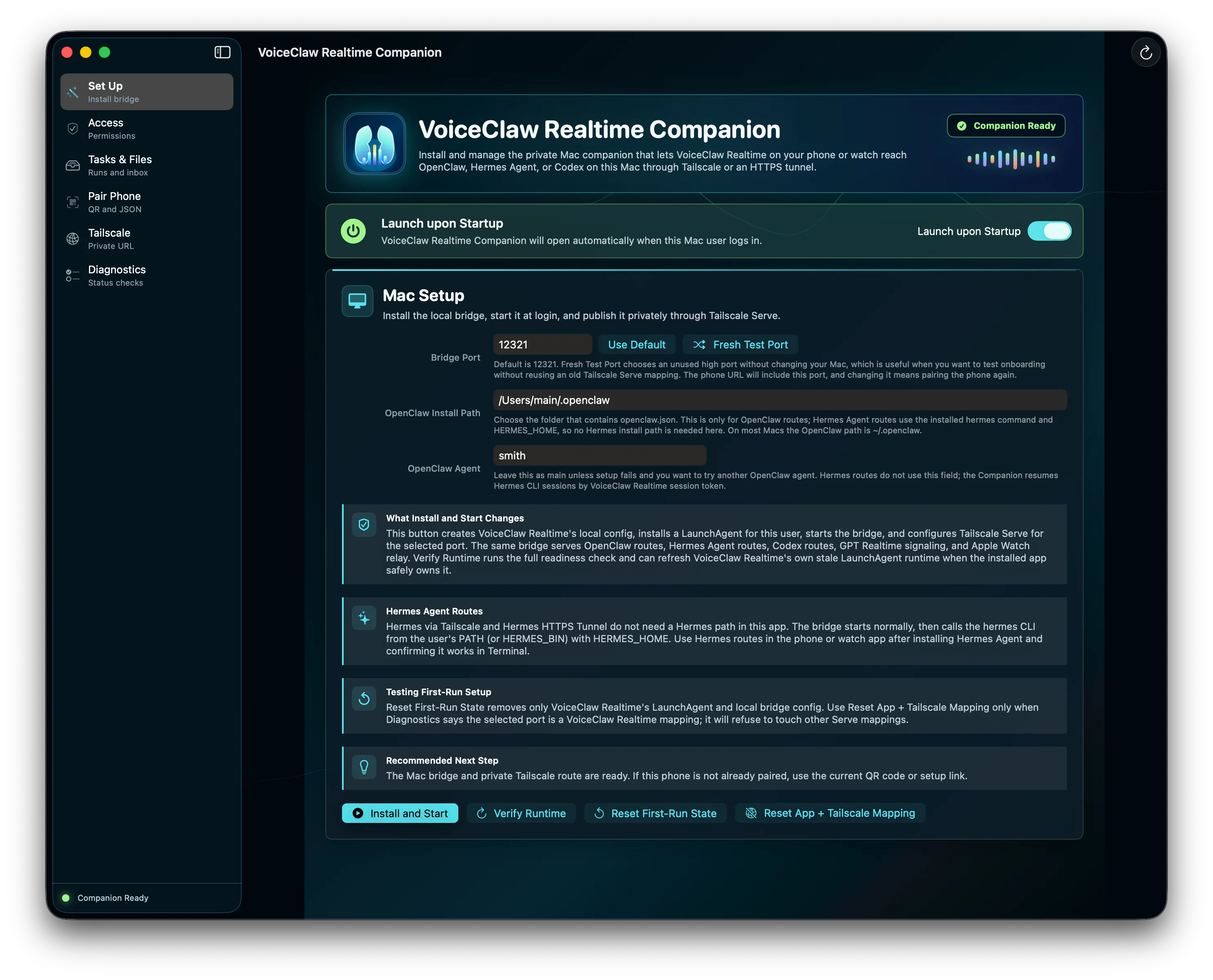
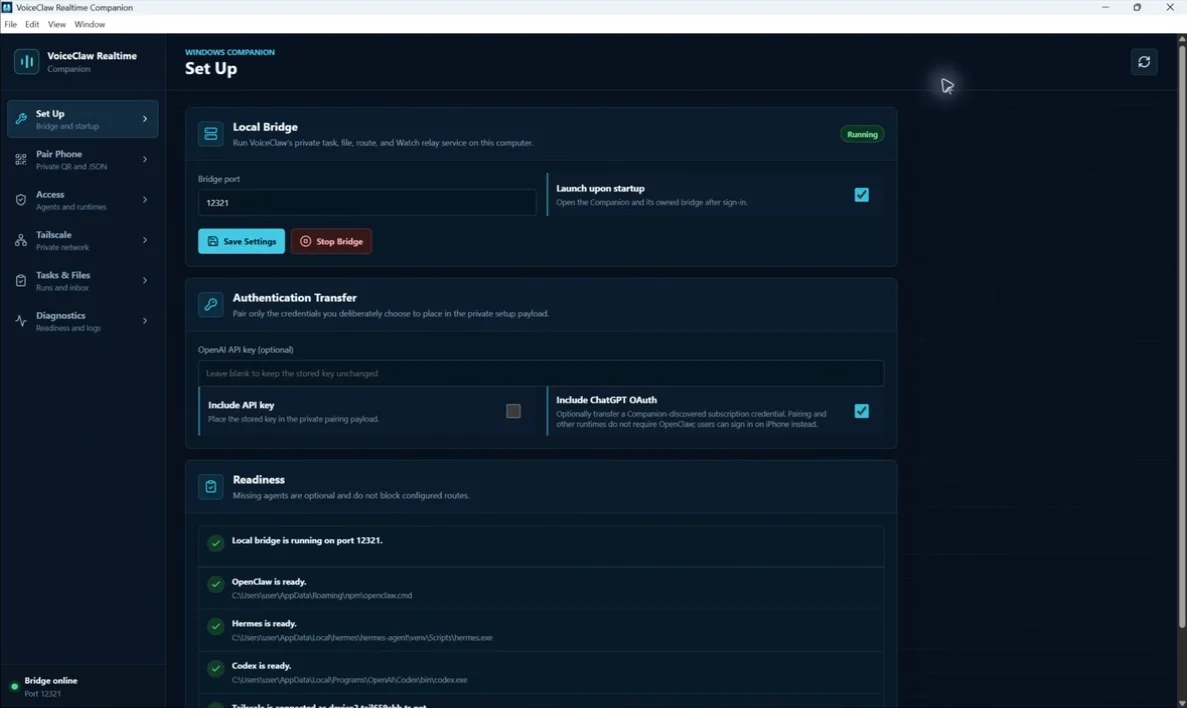
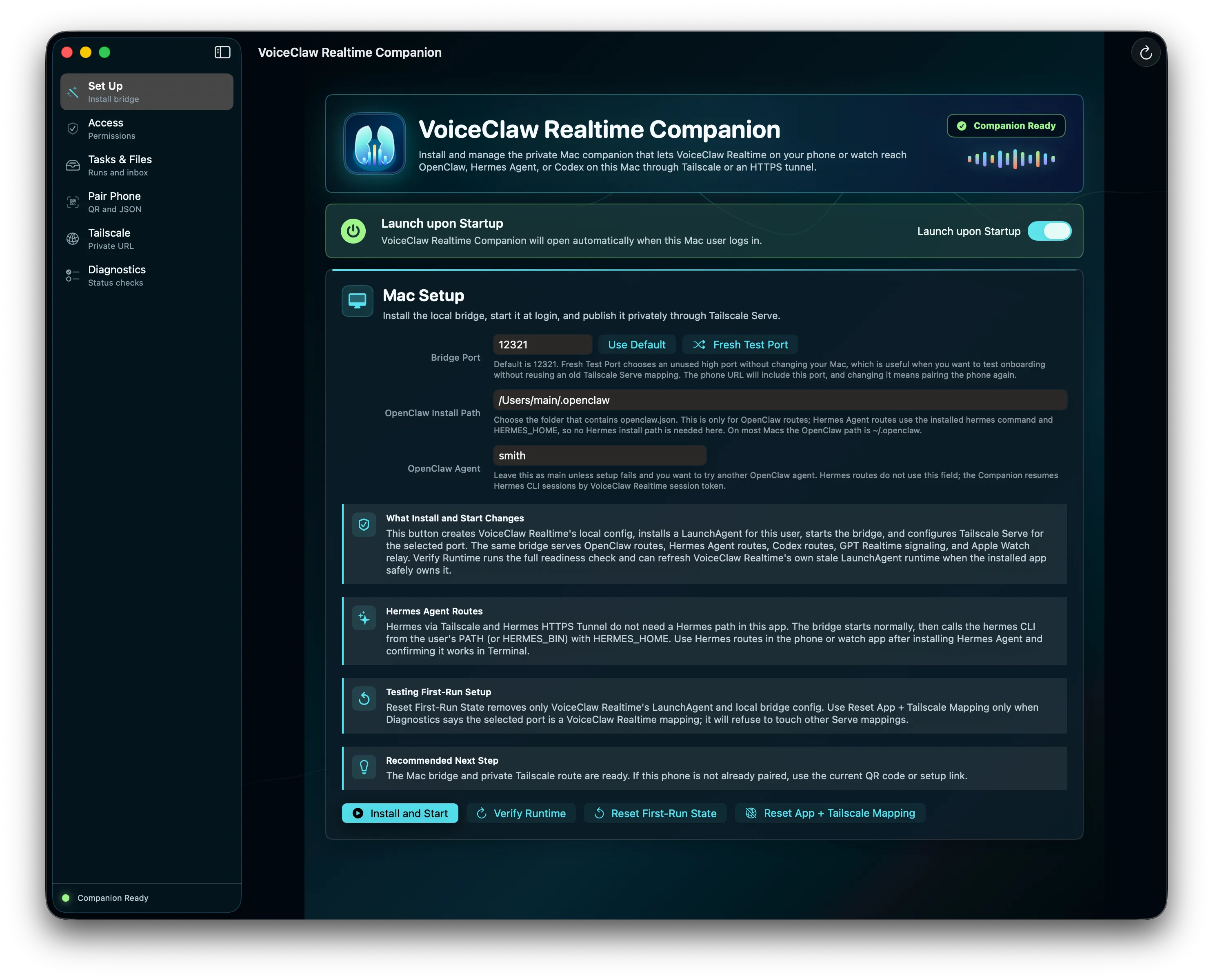
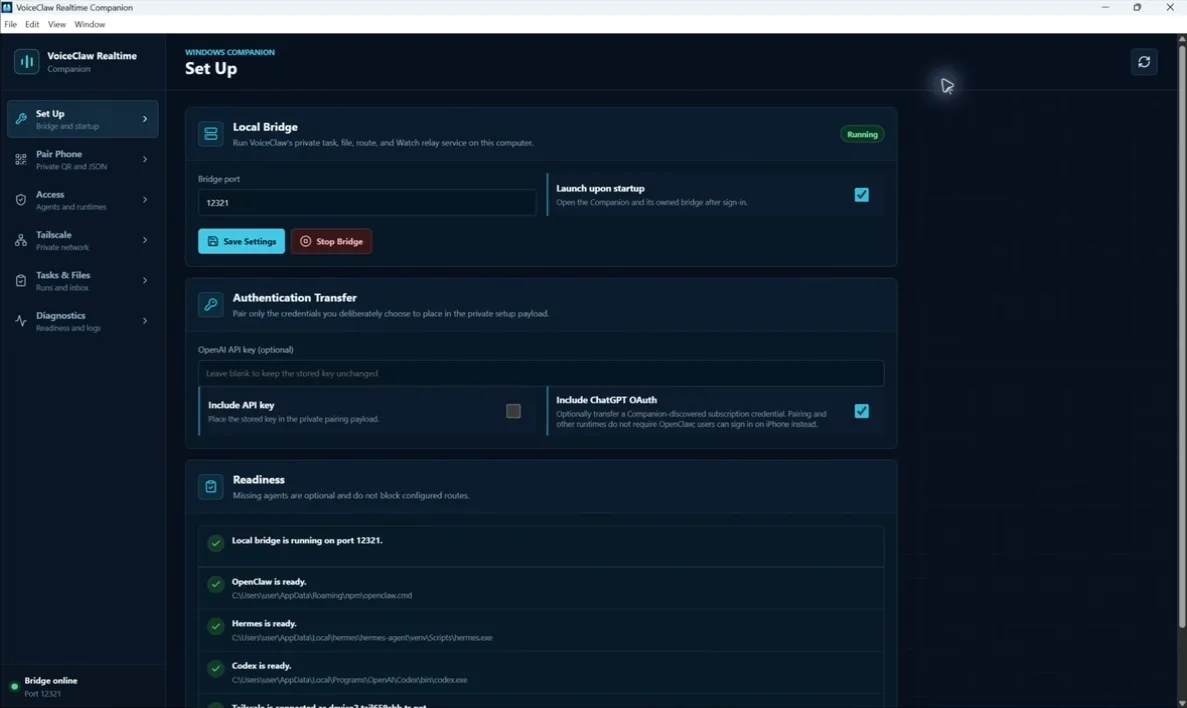
Install Companion on your Mac or PC, scan one QR code, and use your voice to send work to Codex, OpenClaw, and Hermes, control your computer through those agents, follow progress, and receive files on iPhone or Apple Watch.
Download CompanionSetup help
What it connects
Use your voice. Let your agents do the work.
Codex
Ask Codex to reason, write code, create files, and operate supported apps on your computer.
OpenClaw
Choose any configured OpenClaw agent, send or steer work, and resume recent sessions.
Hermes
Send work to Hermes, follow its progress, and continue talking while it works.
Tasks & Files
See active and completed tasks, then open the files your agents send back.
Private pairing
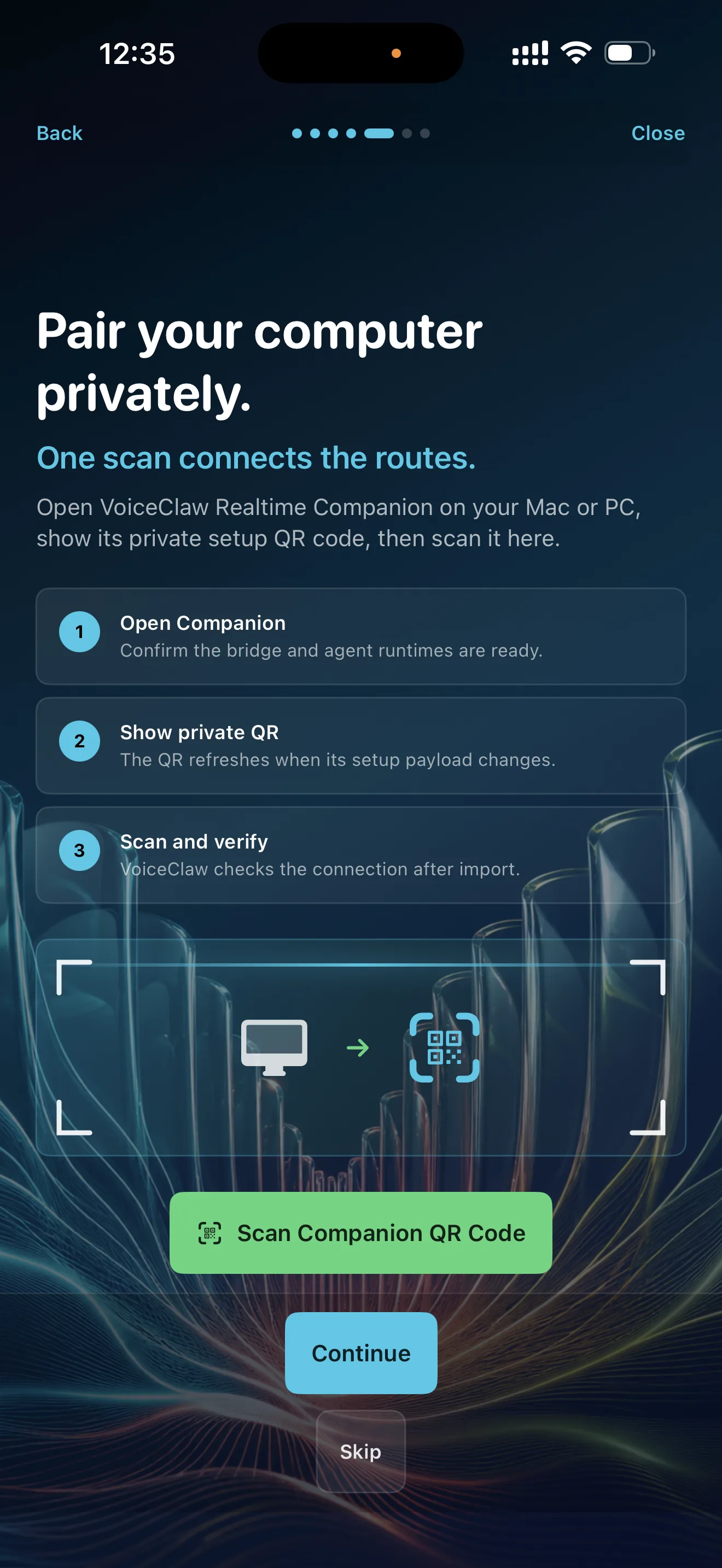
Open Companion. Scan the QR. Start talking.
Choose the connection details you want to include, scan the QR code with VoiceClaw Realtime, and let the app confirm that your computer and selected agents are ready.
One-scan setupCurrent connection checkSeparate status for each agent
Install and pair
Choose your computer. Pair once.
Current builds support Apple silicon Macs and Windows x64 computers. Linux support is coming soon.
Download Companion
Choose the current macOS or Windows installer above. Every public installer is hosted directly by VoiceClaw Realtime.
Start the connection
Companion can launch automatically and connect through the Tailscale network you manage.
Confirm your agents
Check that the Codex, OpenClaw, and Hermes installations you want to use are available.
Scan the QR code
Pair VoiceClaw Realtime and start using your computer-side agents by voice.
See what is connected
Know which agents are ready before you start.
Companion and VoiceClaw Realtime show separate status for live voice, your computer connection, and each optional agent. If one agent is not installed, the rest of VoiceClaw Realtime remains available.
Open troubleshooting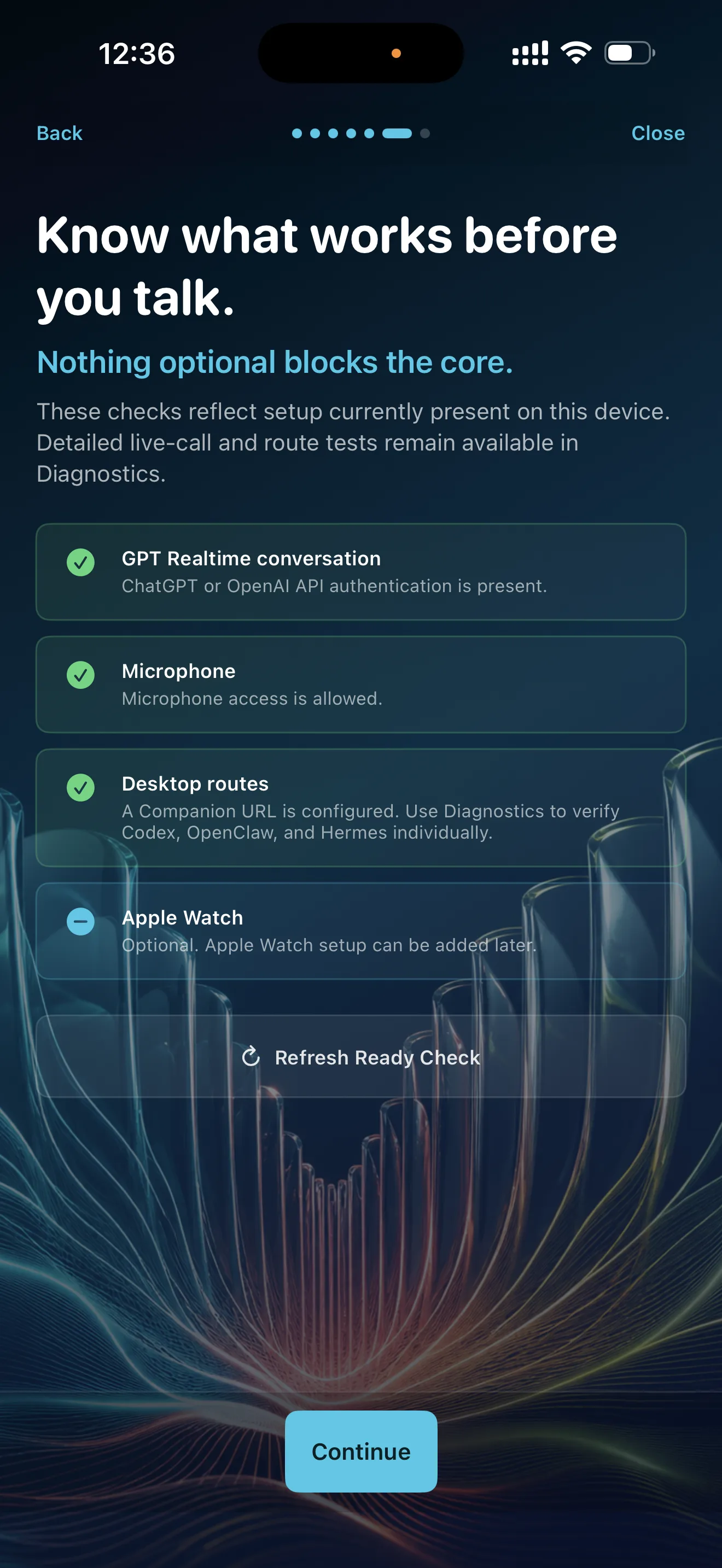
How the connection works
Your connection. Your accounts. Your computer.
Private device connection
Tailscale connects your devices through the private network you manage. VoiceClaw Realtime does not make your computer public.
Your credentials
Credentials remain in the iPhone Keychain or Companion settings on your computer.
Files returned to you
Files your agents send back appear in VoiceClaw Realtime and remain in Companion's inbox until you remove them.
Update alerts
Companion tells you when a new macOS or Windows version is available.
Companion FAQ
What Companion adds.
Use the official support guide for installation, privacy, pairing, and route troubleshooting.
Open Companion supportDo I need Companion to use VoiceClaw Realtime?
No. GPT Realtime, GPT Live, GPT-5.6 Direct, file analysis, web search, and supported iPhone actions can work without a computer. Companion is only needed for computer-side agents, computer control, and computer files.
What happens when I start Companion?
Companion starts the VoiceClaw Realtime connection on your computer. It can also open automatically when you sign in and configure the private Tailscale connection you select.
Does Companion make my computer public?
No. Tailscale is a private, direct device-to-device network that you control. An optional personal HTTPS tunnel URL (e.g., a free Cloudflare tunnel URL) is only necessary if you want to use Apple Watch to communicate with Codex, OpenClaw, or Hermes when your iPhone is not nearby; it isn't needed to use Apple Watch with GPT Live / GPT Realtime standalone or with GPT-5.6 Sol / Terra / Luna, regardless of whether your watch is near your phone, and it isn't needed for the iOS app at all. If you set up a personal HTTPS tunnel, treat it like a password; don't share it with others, and if you do, change it promptly via your tunnel provider (e.g., Cloudflare).
Where do returned files go?
Files sent back by your agents appear under Files Received in VoiceClaw Realtime and remain in Companion's inbox on your computer until you remove them.
Setup help
Need help connecting?
Send the visible state and the route you are trying to use. Do not send API keys, QR payloads, tokens, or private bridge URLs.