
No voice input or output
Confirm microphone permission, the visible mute state, the selected Voice Engine, and the audio output. End and restart the live session after changing audio permissions.
Support
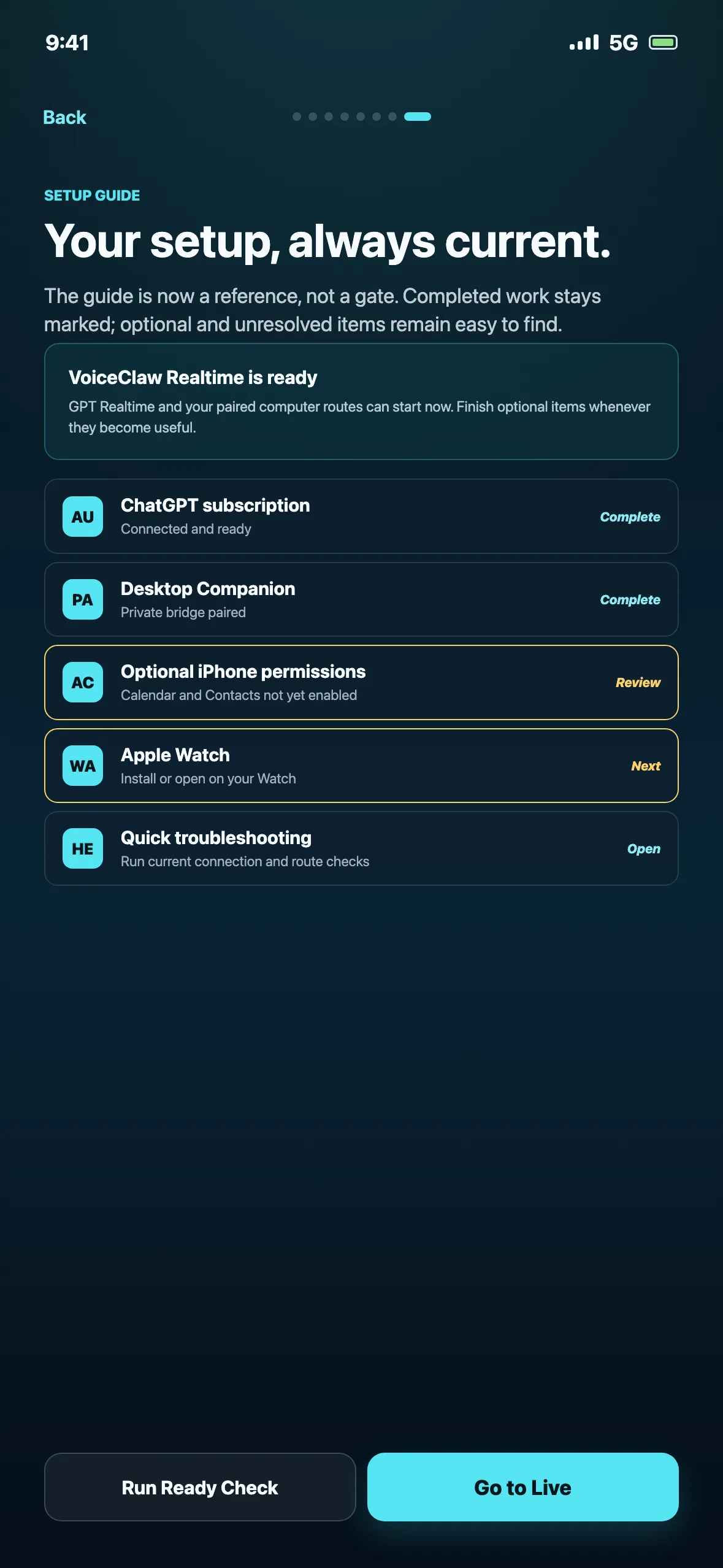
Start with Ready Check in VoiceClaw Realtime. It shows whether the issue is live voice, your computer connection, a specific agent, Apple Watch, or a permission. If you still need help, send support the exact message you see.
First check
Run Ready Check after changing sign-in, Companion, agent, Watch, network, or permission settings. An optional agent that is not installed should not prevent live voice or other configured routes from working.
Troubleshooting
Confirm microphone permission, the visible mute state, the selected Voice Engine, and the audio output. End and restart the live session after changing audio permissions.
Open Companion Diagnostics. Confirm the local bridge, Tailscale Serve mapping, and current phone URL. Re-pair after any bridge port or setup payload change.
Check the status for the agent you selected. In Companion, verify the selected Codex installation, the OpenClaw folder containing openclaw.json, or the configured Hermes executable.
Codex, OpenClaw, and Hermes can use the paired iPhone when it is nearby. Without the iPhone nearby, those computer-side agents require your own personal HTTPS tunnel. GPT Realtime, GPT Live, and GPT-5.6 Direct do not require that tunnel.
End and restart the session once, then confirm microphone permission, the visible mute state, audio output, and current ChatGPT sign-in. If GPT Realtime works but GPT Live remains silent, send support the exact status message and diagnostics instead of changing unrelated Companion or agent settings.
Open Companion and confirm Codex access is enabled, the selected Windows Codex installation passes its check, and Companion has the permissions granted during installation. If only computer-control requests fail, send support the exact Windows helper or permission message shown.
Setup paths
Install the iPhone app, connect supported ChatGPT or OpenAI access, allow the microphone, and start GPT Realtime or GPT Live. A computer is not required.
Install the latest Companion, prepare Tailscale, start the connection, pair by QR, and run Ready Check for the agent you want to use.
Install or open the Watch app and sync current settings from iPhone. GPT Realtime, GPT Live, and GPT-5.6 Direct can use Watch Wi-Fi or cellular without a personal HTTPS tunnel. Codex, OpenClaw, and Hermes use the paired iPhone when it is nearby; they use your personal HTTPS tunnel only when the iPhone is not nearby.
Allow the iPhone or computer permissions needed for the action. Open returned files from Work in VoiceClaw Realtime or Tasks & Files in Companion.
Common questions
These checks reflect the current Companion and onboarding flow.
Confirm microphone access, then check that ChatGPT subscription sign-in or an OpenAI API key is available for the Voice Engine and Voice Route you selected. If authentication imported from Companion changed, pair the iPhone again.
Confirm Companion is running, Tailscale is signed in on both devices, both are on the same tailnet, and the current Tailscale Serve mapping passes Companion Diagnostics. If the bridge port changed, scan the current QR again.
In Companion, point OpenClaw Install Path at the folder that directly contains openclaw.json, usually ~/.openclaw. Then run the route check again.
Run hermes --help in Terminal or PowerShell. Companion uses your computer's command-line environment. If Hermes works only through custom shell setup, configure its executable path in Companion.
GPT Realtime, GPT Live, and GPT-5.6 Direct can use the Watch's Wi-Fi or cellular connection without a personal HTTPS tunnel. Codex, OpenClaw, and Hermes can use the paired iPhone when it is nearby. To reach those computer-side agents without the iPhone nearby, configure your own personal HTTPS tunnel to Companion.
Include the device, app or Companion version, selected route, the visible status message, and what happened immediately before the issue. Redact API keys, QR payloads, tokens, private hostnames, and bridge URLs.
Contact support
Email support@voiceclawrealtime.com. Include versions, device, selected route, visible status, and reproduction steps. Never include secrets or pairing payloads.
Downloads and policies